
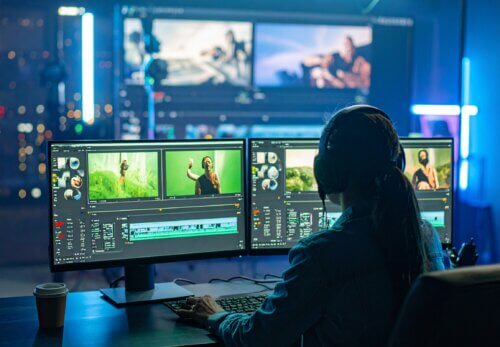
Hello, this is Motion Visual Japan Inc. The hot weather continues. Last week, we talked about specific video shooting methods. Even after shooting, you can't just release the footage as is. To put it another way, shooting is like securing ingredients, and editing is like cooking. The editing process is simple in what needs to be done. Yet, it is also a very profound task.
In the first chapter, we will explain the basic flow of video editing that beginners should keep in mind, divided into six parts. Even if you change video editing software, the buttons and tool positions are just different, so once you understand the flow, you should be able to understand the general meaning when switching to other software.
Choosing Software
If you want to start editing, you can't begin without software. However, the answer varies greatly depending on your situation.
First, it's divided by smartphone (Android or iOS) and PC (Windows or Mac). When we teach editing in our courses, we exclusively use Adobe Premiere Pro. It's paid, but it's professional-grade, and many amateurs also use it.
If your stance is to learn editing, it might be more PC-based than smartphone-based. Another option is Davinci Resolve. This has paid and free versions, but the free version has sufficient functionality.
For editing beginners, CapCut or AviUtl might be good. However, you'll likely find them insufficient as you progress. That said, if you only need very simple editing, iMovie, which comes pre-installed on iOS, should be sufficient.
Editing Flow
Assuming you have the software downloaded, there is generally the following process.
1. Prepare Materials
2. Import Materials into Software
3. Edit Materials
4. Adjust Video Elements like Text
5. Adjust Audio Elements like Music
6. Output
This is the flow. It's important to distinguish between visuals and audio and proceed in stages.
Flow 1: Preparing Materials
In short, it's shooting. Some technical know-how for shooting is published on this blog, so please take a look.
Flow 2: Uploading Videos and Images to Software
Once you have editing software on your computer, the first thing to do is to load the necessary video footage into the video software (= upload it) to create a movie. It's not enough to just have the video on your computer; editing is only possible after the footage is loaded into the software.
Flow 3: Editing Footage
You can connect uploaded footage to make it one piece, or conversely, cut out unnecessary parts. By cutting out and connecting only a portion of the video, you gradually put it together as a video. Beginners should focus on being able to cut and paste uploaded videos rather than worrying about effects or compositing. This is because there are so many basic elements, and this alone will likely provide a significant amount of information.
To put it another way, perhaps the desire for many people to "learn editing" is actually a desire to create "viral videos." In that case, it requires a completely different set of know-how. We will introduce that separately, so please look forward to it!
Flow 4: Adjusting Video Elements like Captions
Once you can cut and paste video footage, the next step is to add text and decorations to each piece of footage. Using effects can further enhance the quality of the video. This varies greatly depending on the video's style and colors. Once you've decided on the concept during the planning stage, you need to pursue visual expressions that don't deviate from it. For example, in a music video, a video that constantly zooms in isn't necessarily a wrong expression method. The intention and theme are what's important.
Flow 5: Adjusting Sound, such as Music
Sound adjustment is also very important here. Even if you're conveying great information, if it's just noisy, that valuable information will turn into mere noise. After you've finished processing the video, let's proceed with adjusting the sound and music to match it.
Flow 6: Outputting as a Single Video
Finally, you output the created video, and you're done. There are various file formats for videos. For example, on Windows, there's "AVI," developed by Microsoft, and on Mac, there's "QuickTime (.mov)," developed by Apple. In most cases, you cannot re-edit the output video, so please be aware of this.
Basic Video Editing Terms You Should Know
One of the things that particularly troubles beginners when editing videos is the terminology. With so many foreign words lined up, I think it takes time to figure out which function is which. However, this is common to video production in general, so once you get used to it, you can apply it to other software. Here, we will introduce five of the most important basic terms.
Basic Video Editing Term 1: Trimming
This comes from the English word "Trim" (= to cut off). For example, suppose you have a 1-minute music video and you want to cut out the 10-second intro at the beginning. Using the trimming function in this case allows you to shorten a 60-second video to 50 seconds.
Additionally, the position where the cut starts is sometimes called the "IN point," and the position where the cut ends is called the "OUT point."
Basic Video Editing Term 2: Effects
The word "effect" in English means "result," "influence," or "impact." It refers to special effects added to video or audio. In addition to what already exists, they are used to enhance the impact of the production.
Basic Video Editing Term 3: Clip
We have been using the word "material" to explain things so far, but a clip is material. To create a video, you will need video clips, audio clips, and image clips.
Basic Video Editing Term 4: Codec
Codec is an acronym formed from the first syllables of the English words Compression and Decompression. It is a term used when compressing or decompressing large video files or digital files.
Basic Video Editing Term 5: Frame Rate
When broken down, video is "a series of still images played back continuously at high speed." And this frame rate is the value of how many still images are played back per second. With a flipbook, there's a difference in smoothness between "seeing 10 images in 10 seconds" and "seeing 100 images in 10 seconds." In other words, frame rate is the element that determines the smoothness of the video.
How was it?
In this article, we have covered the general flow of editing. We mentioned that editing is similar to cooking, and just as there are many ways to express flavor, editing is also very profound. In the next blog post, we will share more detailed editing technique information that we couldn't cover this time. Please look forward to it.
To continue video production within the company
When producing videos for business, it is important to organize the planning, shooting, and editing processes according to the staff's experience and equipment. MVJ's in-house production support allows you to consult on training and advice during production for only the necessary parts.
In-house video production and shooting/editing training
More details on this topic


Consult about in-house video production and employee training


There are no comments on this post.